Host the service: Church setup guide
Setting up your Church Translation profile takes only a few minutes. Follow this guide to move from your first login to your first live translated service.
Written By Dennis Dueck
Last updated 3 days ago
📝 Before you begin
Pricing Review: Review our usage-based pricing model to ensure it aligns with your church’s budget and mission goals. 👉 Pricing & What’s included
Language Support: Verify that your spoken language and your congregation's preferred languages are currently supported. 👉 Supported Languages
Church Details: Your official church name and physical location.
Email Account: An email address to associate with your primary church account.
Payment Details: Not needed to sign up. Once your free characters run out you can pay by IBAN, debit/credit card, or 👉 another payment method.
Country Availability: Check the 👉 Supported Countries List
💡 Tip: We recommend using a shared address (e.g.,
translation@yourchurch.com) so your volunteer team can all log in. Don’t worry, you can also update your email later!
👨💻 Creating Your Account (Step-by-Step)
🔗 Step 1: Visit the Registration Page
Start your journey by heading to our 👉 Signup Page.
👤 Step 2: Create Your Login
Enter your contact name, your primary email address and choose a secure password.
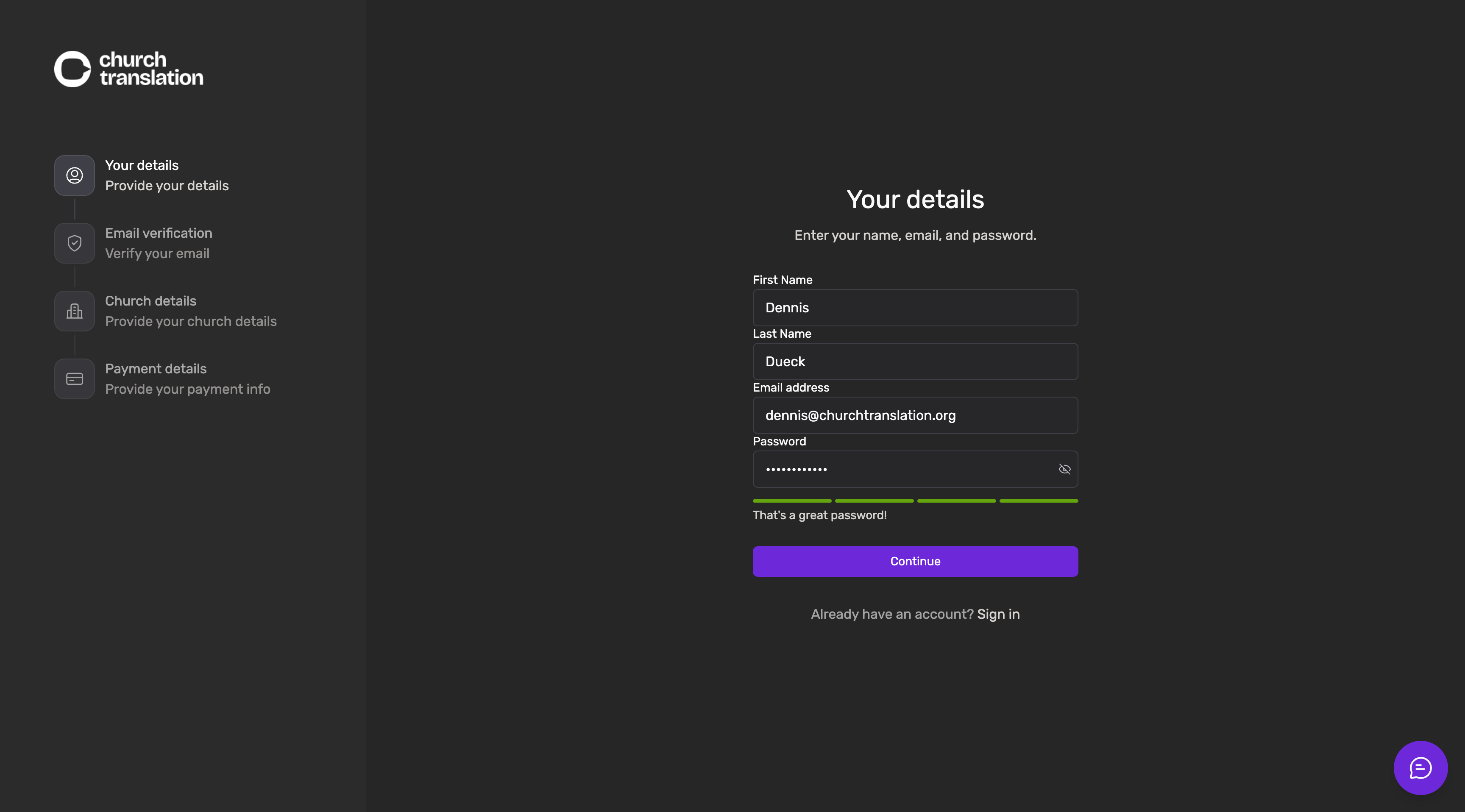
📩 Step 3: Verify Your Email
Check your inbox for a warm welcome from us! Clicking the verification link in that email ensures your account remains secure and helps us keep the "bots" away.
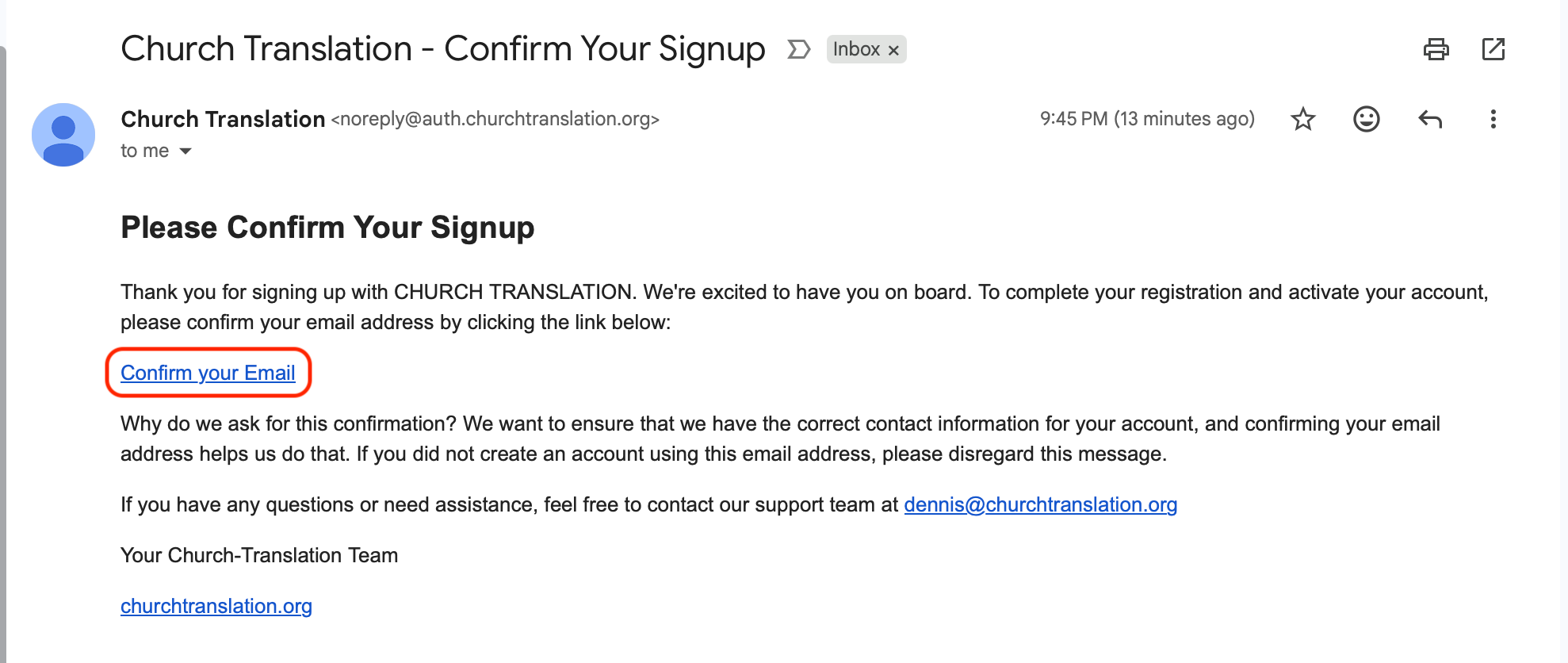
Didn't see it? Check your "Promotions" or "Spam" folder just in case!
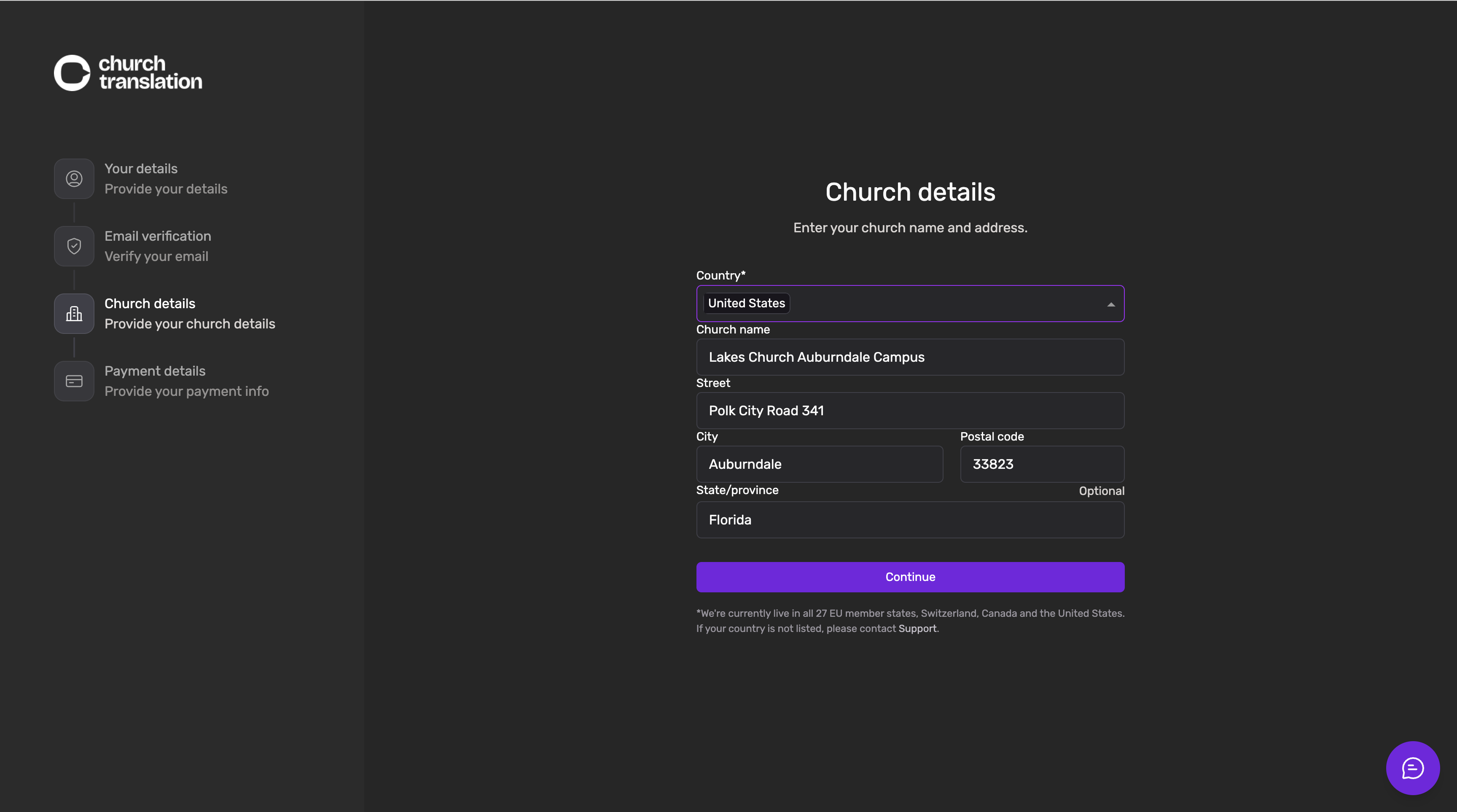
⛪ Step 4: Enter Your Church Details
This is where the magic happens. Enter your official church name and physical address.
💡 Pro Tip: Use the exact name your congregants recognize. This ensures they can easily identify your service when they open the mobile app to listen to a translation.
🎁 Step 5: Your free trial starts here
Every new church starts with 50,000 free characters of translation — one allowance for your whole church, shared across every language you activate. You do not need a payment method to begin — you can run a full service today and pay nothing.
Click Start using the app. That is all — you can begin translating straight away.
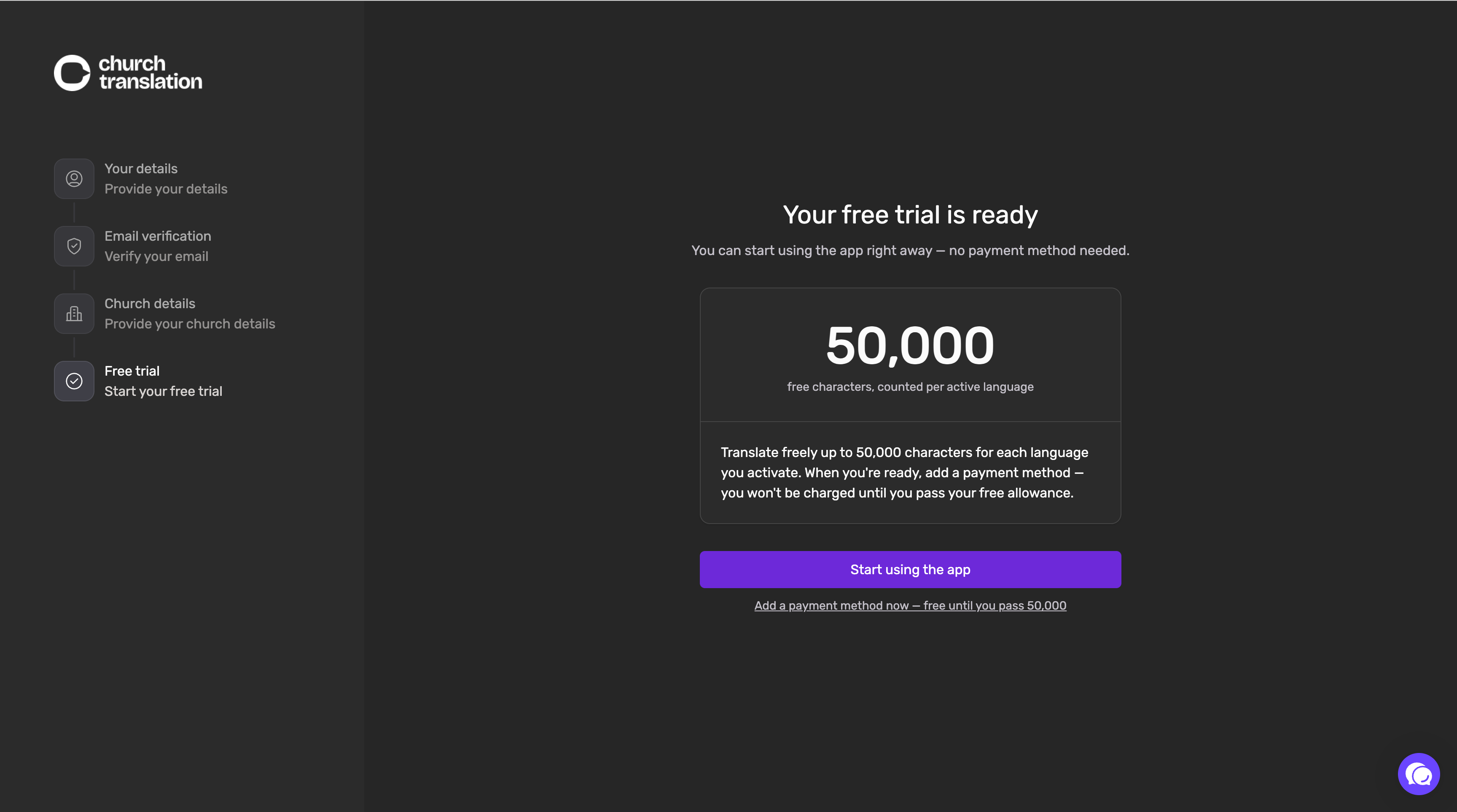
Would you rather set up billing straight away? Click Add a payment method now and enter your church's IBAN or Debit/Credit Card.
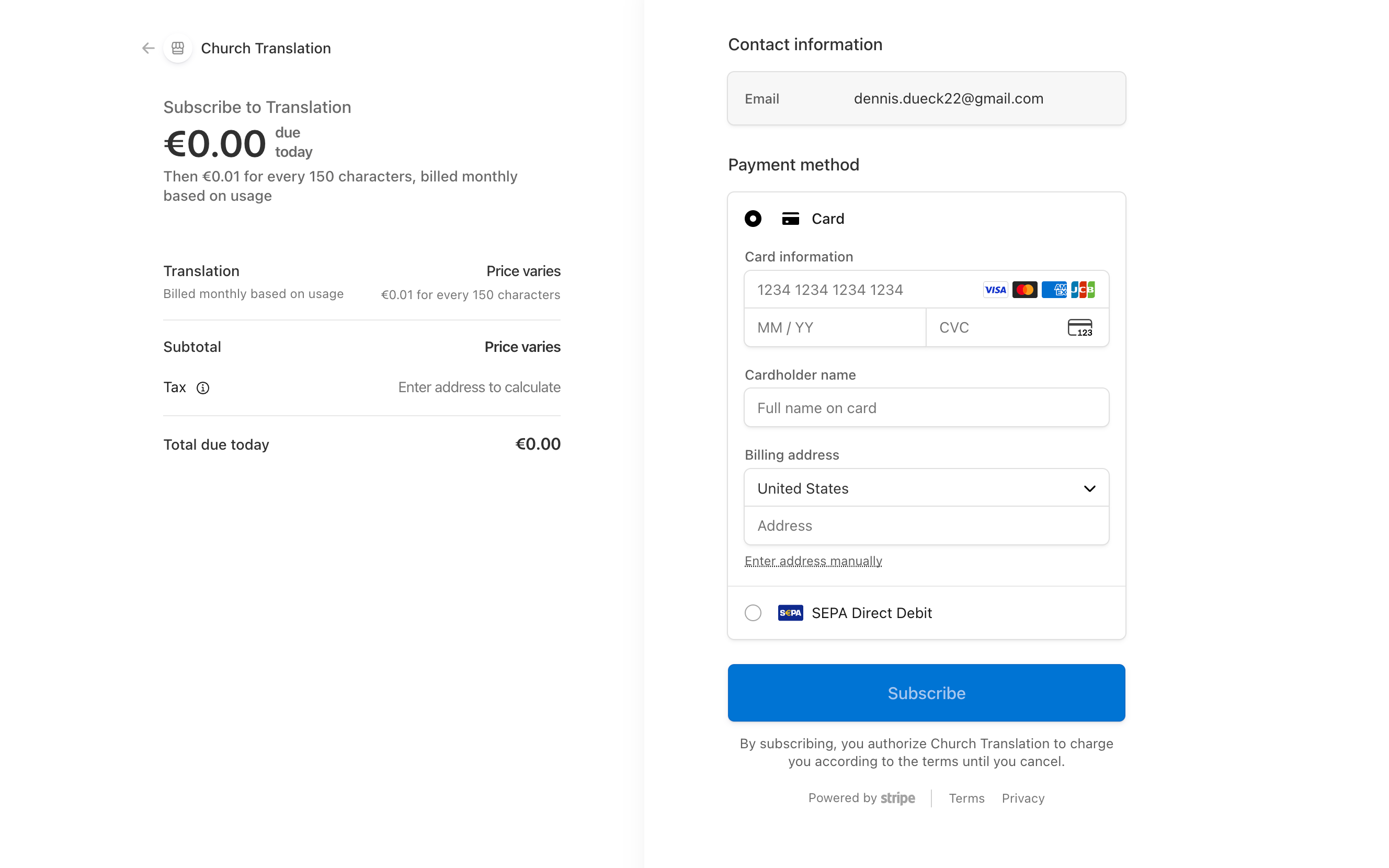
🔒 Security Note: Your payment details are handled through a secure, encrypted processor. Our app never sees or stores your full bank or card information.
💡 When does billing actually start?
Since our platform is usage-based, you pay only for what you translate — and only once your church's 50,000 free characters are used up. Until then you are charged nothing, whether or not you have added a card.
💻 Step 6: Redirection to Translations Page
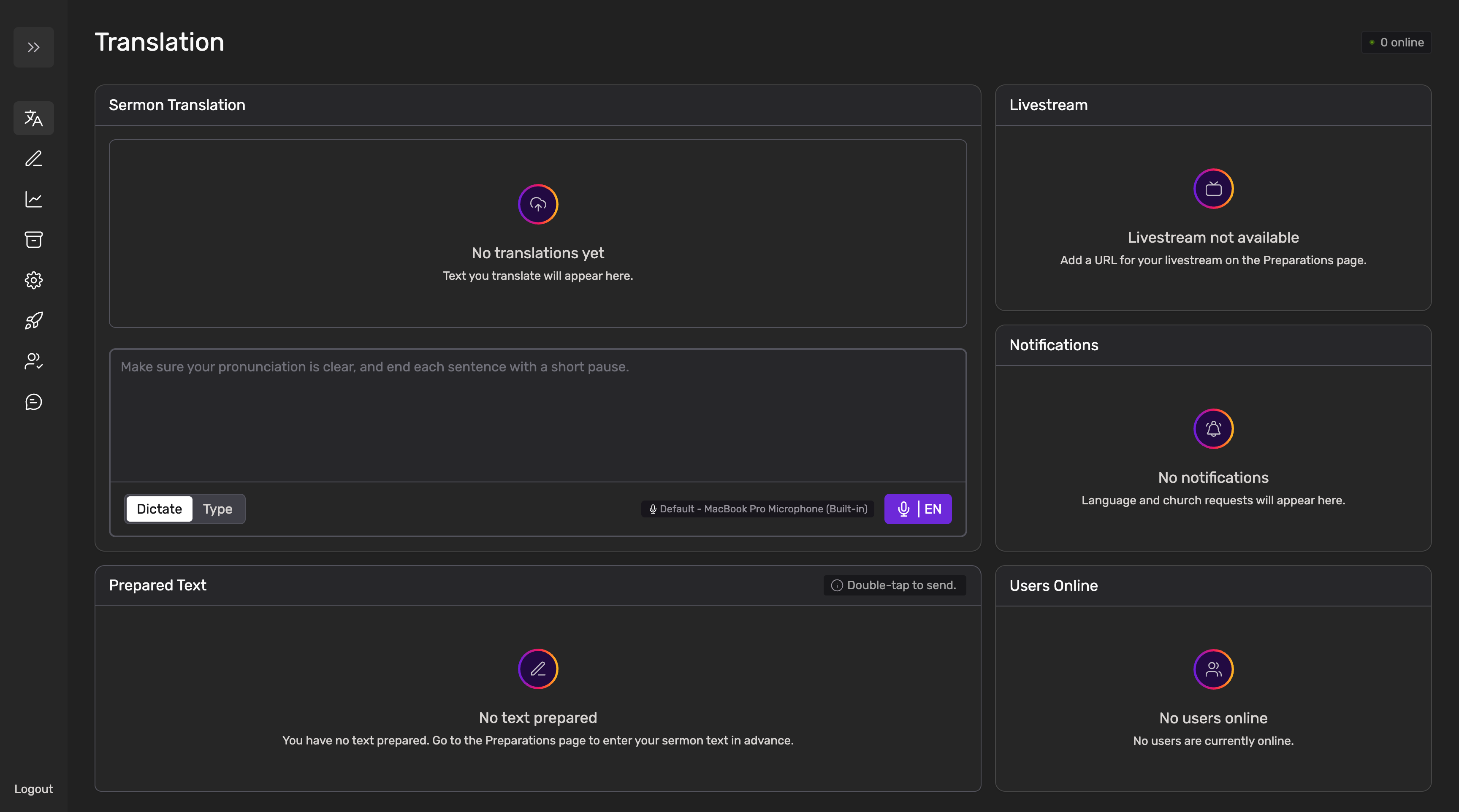
Once your details are successfully added, you will be automatically redirected back to the Translation Page within the app.
🎨 Personalizing Your Profile
Once you land on the translation page, navigate to the Settings page to fine-tune how the system handles your service. This is where you prepare your "digital sanctuary."
🌐 Language Strategy
Speech-to-Text (STT) Language: Select the language you will be using for Dictate Mode.
Note: The default is set to English. If your pastor is speaking a different language, ensure you update this here so the AI "listens" correctly.
Active Languages: Add the languages you know your congregation will need to the "Active" list.
Pro-Tip: Don’t worry if you forget one! You can always activate new languages in real-time during the live service if a visitor requests them.
🎤 Audio Connection
If you have access to your church's audio input during this setup:
Plug the audio source into your computer.
Select the correct Audio input under Settings → Speech-to-text settings.
Once selected, the app will remember and automatically use this input the next time you connect.
⚙️ Access & Stewardship Controls
These toggles determine how much manual work your tech team has to do on Sunday versus how much the system handles automatically.
Automatically Approve Users?
YES: Any visitor who finds your church through the public directory can join instantly.
NO: Your team must manually "OK" any visitor who joins via the public list before they see the translation.
💡 Visitors who join via your QR Code or Church Sign-in Code are always granted instant access and never require manual approval.
Automatically Approve Languages?
YES: If a visitor selects a language that isn't already active, the system starts translating it immediately.
NO: A volunteer must approve the new language request via the notification widget.
⚠️ Stewardship Note Every active language is translated on every sentence, at €0.01 per 150 characters. You can still leave automatic approval on: Switch off unused languages under Settings → Translation settings drops a language once nobody is listening, and brings it back when someone returns. New churches start at After 5 minutes. More in Stewardship: Making the Most of Your Resources.
🖥️ Exploring Your Dashboard
Welcome to your Admin Dashboard. This is your mission control - the central hub where you manage your translations and connect with your congregation. Here is a quick look at how to navigate your new tools
Your dashboard is designed to be intuitive, but each section offers powerful tools to help your ministry. Below is a quick directory of the key areas you'll use:
Sunday Morning Tools
These are the pages your team will use during the live service.
🔗 Translation Hub – Your main command center for starting/stopping dictation, monitoring live text and manage join & language requests.
🔗 Announcements – Write a notice once in your own language and it appears on your visitors' phones in theirs.
Preparation & Accuracy
Use these tools mid-week to ensure the highest quality translation on Sunday.
🔗 Preparation Hub – (Optional) Upload scripts, use the Split Sentences tool, and stage your sermon content.
🔗 Keyword Booster – Teach the AI your church’s specific vocabulary, names, and theological terms.
Insights & History
Review your impact and manage your account settings.
🔗 Statistics Page – Monitor your current usage. This page tracks your real-time costs and daily spending to help you manage your stewardship.
🔗 Archive – Access, review, or delete transcripts from previous services.
🔗 Settings – Manage your account details, default languages, audio inputs, and billing.
🔗 User Management – See how many people have joined your church and which languages they are actually using.
💡 The 30-Second Test Drive
The best way to feel confident is to see it in action. Try this right now:
Get your Sign in code from the Settings Page
Open the Mobile App on your smartphone
Enter the Sign in code and signup as Guest
Open the Translation Page and start recording
Watch your words appear instantly on your phone!