Your Account and Your Privacy
The difference between joining as a guest and signing in, what your church can see about you, and how to delete your account completely.
Written By Dennis Dueck
Last updated About 2 months ago
Your account and your privacy
You can use Church Translation without giving us anything at all. If you would rather keep your settings safe across devices, you can sign in properly. This page explains the difference, what your church can see, and how to remove yourself entirely.
Guest or signed in?
Guest is a genuine option, not a lesser one. If you are visiting once, use it and think no more about it.
⚠️ The one thing to know about guest accounts. A guest account exists only in the app on that one device. There is no email or password attached, so there is nothing to recover it with. If you clear your browser data, reinstall the app, or move to a new phone, that account and everything in it is gone permanently — and neither you nor we can bring it back. If you have set up a language, text size and a couple of churches you would rather not lose, link an account.
Turning a guest account into a permanent one
Nothing is lost when you do this — your language, text size and churches all carry over.
Open Settings.
Under Want a permanent account? tap Link with Google or Link with Apple. On an Android phone only Link with Google is offered.
Follow your phone's usual sign-in prompt.
You will see Account linked successfully! and that is that.
If you see This account is already linked to another user, that Google or Apple account is already attached to a different profile — perhaps one you made on another device. Sign out and sign back in with it instead of linking.
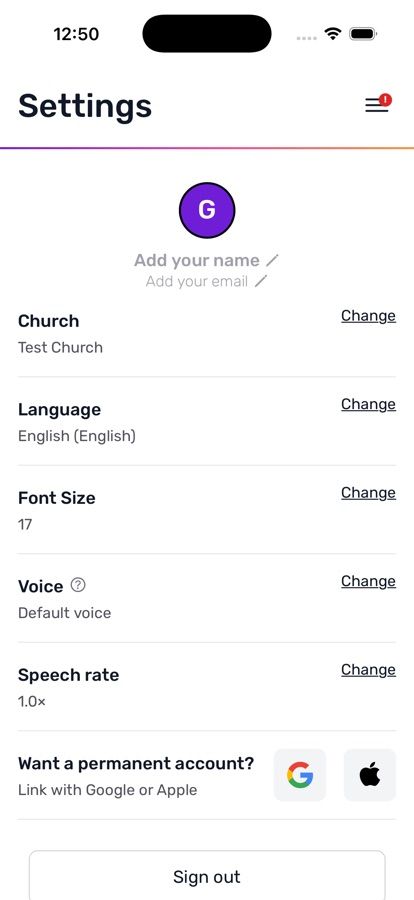
Your name and email
Both are optional, and both live under Settings.
Add your name / Edit Name — your first and last name
Add your email / Edit Email — an email address
Adding a name is a kindness to the volunteers at your church: it means they see a person rather than another anonymous guest when they approve you.
What your church can see
Being open about this is only fair.
While a service is running, the people operating the translation see a list of who is following along. For each person they see:
Your name and email, if you signed in with Google or Apple and provided them
"Guest", if you did not
The language you are reading in
That is all. They cannot see your messages, your other apps, your location, or anything you do outside the service. Church Translation has no access to any of that.
The audio of the service is never stored. It is translated as it is spoken and then it is gone. The translated text is kept so it can appear in your church's archive.
Deleting your account
You can remove yourself completely, at any time, without asking anyone.
Open Settings.
Tap Delete my account.
You will be asked Delete your account? — This will permanently remove your profile, settings, and church memberships. This cannot be undone. Tap Continue.
You will be asked once more: Are you absolutely sure? — Your account and all related data will be deleted immediately. You will be signed out. Tap Delete permanently.
Your profile, your settings and your church memberships are removed straight away, and you are signed out.
There are two confirmations on purpose. This cannot be reversed — not by you, not by your church, not by us. If you only want to stop attending a particular church, change churches under Settings → Church instead.
Reporting a problem
If a translation shows something wrong, offensive, or clearly not part of the service, tap About, then Report a problem.
It opens an email with your church already filled in so we know where to look, and asks you to describe what you saw. A person reads every one of these.
About also holds the Privacy Policy and Terms & Conditions in full.
Was this helpful?
Still need help? Ask the team