The Listening Experience
What you see on the Translation screen, how to make the text bigger, and how to have your phone read the translation aloud to you through headphones.
Written By Dennis Dueck
Last updated 8 days ago
Following the service in your language
Once you have joined your church, the Translation screen is where you will spend the service. This page explains what you see there, and how to make it comfortable to read — or to listen to instead.
Before the speaker starts
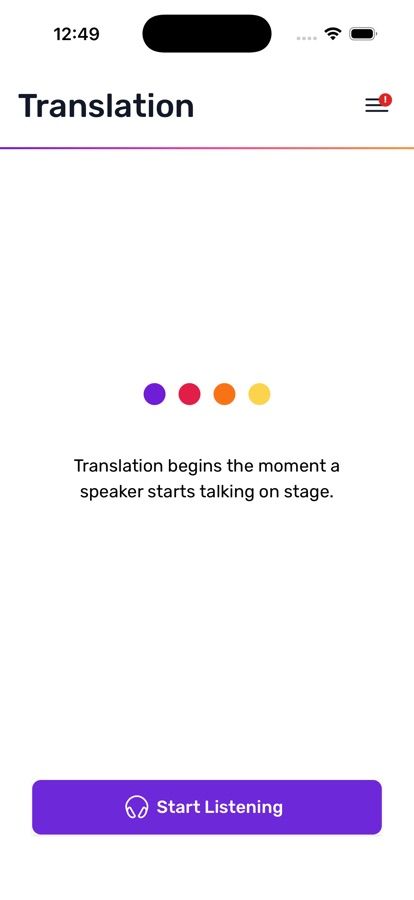
If you open the app early, the screen will say:
Translation begins the moment a speaker starts talking on stage.
That is normal. Nothing is broken. As soon as someone at the front begins speaking, the words start arriving.
You will also see three small dots near the top. When they are moving, the microphone at the church is live and the service is being translated right now.
Reading along
Sentences appear one after another as the speaker talks, and the screen keeps itself scrolled to the newest one. You do not have to do anything.
Scroll up whenever you like to re-read something. New sentences keep arriving while you do.
Making the text bigger
Open Settings from the menu.
Tap Font Size.
Choose any size between 16 and 30.
The change applies immediately and is remembered for next time.
Listening instead of reading
If you would rather hear the translation than read it, your phone can read it aloud to you.
Put your headphones in. (Please use headphones — the sound will disturb people around you otherwise.)
Tap Start Listening.
To stop, tap Pause.
Each sentence arrives with its audio already prepared, read in a clear, natural voice. If you would rather hear one of your phone's own voices, pick it under Settings → Voice (see below). Nothing extra is charged for this.
If you see Tap to enable audio playback, just tap it once. Browsers block sound until you ask for it. If you see Audio is blocked by your browser settings. Please enable audio for this site, allow sound for the site in your browser settings and try again.
With your phone in your pocket
In the Church Translation app on iPhone and Android, the audio keeps playing when you lock the screen or it goes to sleep. Start listening, lock your phone and put it away. The screen no longer has to stay on, so your battery lasts through the service.
To pause, use the pause button on your lock screen (on Android, in the notification). It shows Church Translation and your church's name. Pausing there turns the audio off in the app too.
After the service, you don't have to remember to switch it off. When no new translation has played for 30 minutes, the audio turns itself off. Every new sentence starts the 30 minutes again, so a long sermon or a music break never triggers it.
If the audio stops when you lock the screen, update the app from the App Store or Google Play.
In the browser (app.churchtranslation.org), keep the screen on while you listen. Locking it stops the audio, because phone browsers don't let a web page keep playing in the background. To listen with the screen locked, use the app.
Choosing the voice and the speed
Both are under Settings:
Voice — the voices your device has for your language. Default voice is the prepared voice described above.
Speech rate — from 0.5× (slow and careful) to 2.0×, in small steps. There is a preview sentence so you can hear the speed before you settle on it.
Most people find something a little above 1.0× comfortable for preaching.
Getting a better-sounding voice
Your device comes with a basic voice for each language. Better ones are usually free to download, and they make a real difference over an hour.
On iPhone or iPad
Open the Settings app.
Go to Accessibility.
Tap Read & Speak, then Voices.
Pick your language and choose an enhanced or premium voice.
Tap the download icon next to the voice.
On Android
Open the Settings app.
Go to System, then Languages & input.
Tap Text-to-speech output.
Pick your preferred engine and open its settings.
Install voice data for your language.
Then come back to Church Translation and choose the new voice under Settings → Voice. The app also has an Open device settings shortcut to save you hunting for it.
Why is some of it in the wrong language?
Occasionally a passage will appear in the language spoken at the service rather than yours, with a short note:
This part is shown in the language spoken at the service, because nobody was listening in your language at the time.
This is deliberate, and it is not a fault. Churches pay for every language they translate into, so a language with nobody listening is switched off to keep costs down for the church. The moment you opened the app, your language switched back on — but the minutes before that were never translated.
What to do about it: open the app a little earlier next week, before the speaker begins, and your whole service will be in your language.
Some churches choose to fill in the part you missed automatically. That is their setting rather than yours, so if this happens often it is worth mentioning at the welcome desk.
Changing your language
Tap Language in Settings and pick from the list. You can change it in the middle of a service and the next sentence will arrive in the new language.
If the language you want is not in the Active Languages list, see Requesting a Language.
If the screen stays empty
Was this helpful?
Still need help? Ask the team